



Tasks: Schedules and Triggers
Learn how to set up your agent to run tasks automatically on a schedule and manage them without manual intervention.

Scheduled Tasks
A scheduled task is a scenario that the agent runs on its own at the right time, without any involvement from you. Created via chat: simply describe what needs to be done and when.
How to Create a Task
Write to your agent in the chat:
Every morning at 8:00, summarize my unread emails in Gmail
and send the summary to me in Telegram.
Every Monday at 9:00, check my Google Calendar
and send me the meeting schedule for the week.Every Friday at 17:00, ask me what I accomplished during the week
and save the response to a file called weekly_log.md.The agent will create the task, confirm the schedule, and start running it automatically.
Supported Schedule Formats
| Format | Example |
|---|---|
| Every N minutes / hours | Every 30 minutes |
| Daily at a specific time | Every day at 09:00 |
| On specific days of the week | Every Monday and Friday |
| At a specific time | At 18:00 Moscow time |
Managing Tasks
You can view all tasks in the Tasks section. Each task displays its schedule, status (Active / Paused), and action buttons: Edit, Details, and delete.
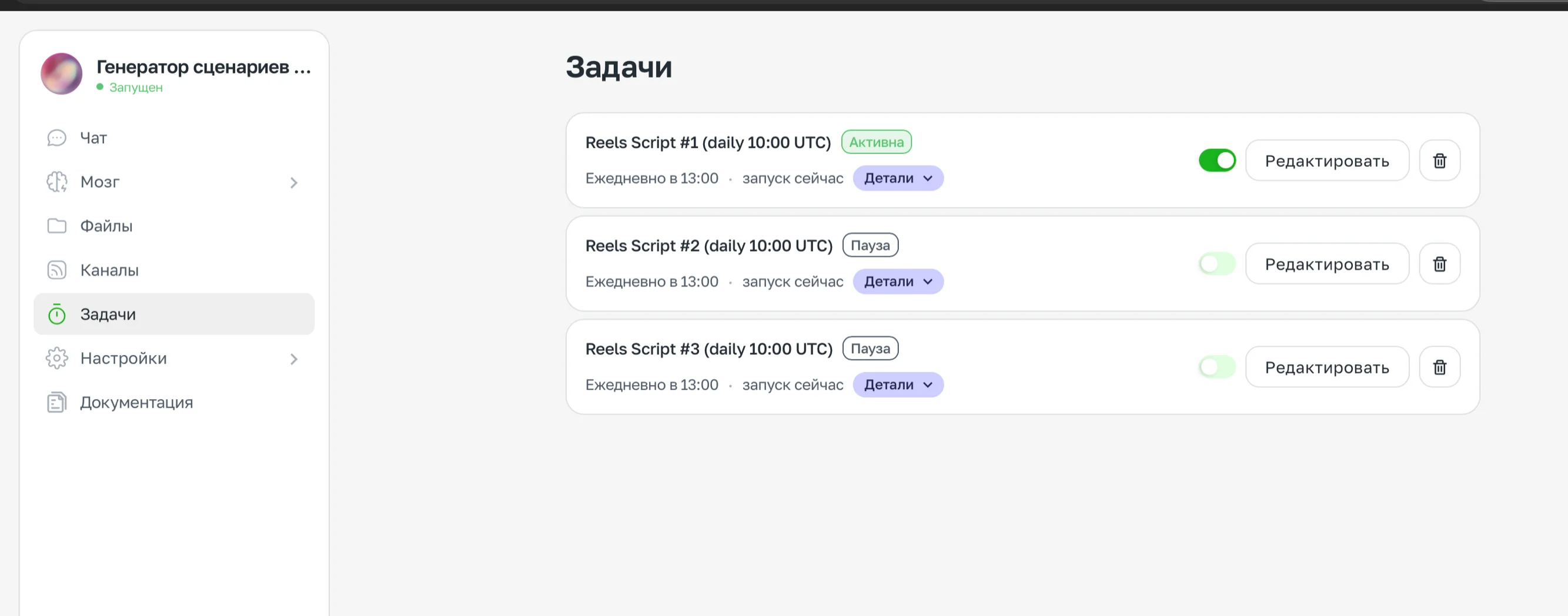
The "Tasks" section — a list with schedules and statuses
To modify or stop a task, tell the agent:
Cancel the morning summary task.Change the morning summary time to 9:30.Credit Usage
Each scheduled task execution consumes message credits. If the task accesses external services (Gmail, Google Calendar, etc.), integration credits are also used.
Scheduled tasks consume credits predictably — you know exactly how many times per day the agent will run. For frequent checks, consider an optimal interval: once an hour instead of every 15 minutes.
Examples of Useful Tasks
Morning email digest:
Every day at 8:00, read my unread emails in Gmail,
highlight the important ones (those with questions for me or deadlines),
and send a brief summary to Telegram.
Meeting reminder:
Every day at 8:30, check my Google Calendar for today
and send me the list of meetings with their times and titles.
Weekly report:
Every Friday at 17:00, ask me what was accomplished during the week
and save the response to a file called weekly_report_[date].md.
Triggers
A trigger is a condition that, when met, causes the agent to automatically perform a defined action. Unlike a schedule, a trigger is not tied to a specific time — it fires at the moment an event occurs.
Available Triggers
| Service | Event |
|---|---|
| Gmail | New incoming email |
| Google Calendar | Event created |
| Google Calendar | Event updated |
| Google Calendar | Event deleted |
| Google Drive | New file added |
| Google Drive | Existing file modified |
How to Create a Trigger
Describe the condition and the desired response in the chat:
When a new email arrives in Gmail, check whether a reply is needed,
and if so — draft a response and send it to me for approval in Telegram.
When a new meeting is created in Google Calendar,
send me a brief summary in Telegram: who, when, and why.When a new file appears in the "Incoming from clients" folder in Google Drive,
check its format and notify me.Managing Triggers
You can view and disable active triggers in the Tasks section.
To stop a trigger, tell the agent:
Disable the trigger for new emails in Gmail.Credit Usage
Triggers consume integration credits each time they fire. If you receive a high volume of incoming emails, a trigger on every new email can consume credits significantly faster than a scheduled task.
If you don't need an instant reaction and a regular check is enough, use a scheduled task — it's more predictable in terms of credit consumption.
Example: Trigger + Schedule
The combination works more effectively than either tool on its own:
- Trigger for new emails from VIP clients → instant notification in Telegram
- Schedule at 8:00 → digest of all other overnight mail
This way you get urgent messages immediately, and everything else at a convenient time.