



Getting Started with ASCN Agent
Learn what ASCN Agent is, what problems it solves, and how it differs fundamentally from a regular chatbot.

What is ASCN Agent
ASCN Agent is an AI assistant you configure once for your tasks and tools. After that, it works on its own: monitors events, runs scheduled workflows, and communicates with you wherever it's convenient — in chat, Telegram, or Slack.
What the agent can do
An ordinary chatbot answers questions. ASCN Agent acts:
- Never misses anything important — monitors your email, calendar, and files and automatically responds to the right events.
- Works without reminders — runs workflows on a schedule or by trigger without any involvement from you.
- Knows everything you know — works with your files and knowledge base, answers questions, analyzes data, and generates reports.
- Keeps you in the loop — sends daily digests and notifications wherever you'll actually see them.
- Connected to your tools — works with Gmail, Google Calendar, Google Drive, Slack, GitHub, and other services.
- Finds up-to-date information — searches the web and analyzes results on demand or on a schedule.
Typical use cases
- Email digest — every evening the agent reads all your incoming mail and sends only what matters to Telegram, no inbox-opening required.
- Meeting notes — joins Google Meet, captures action items, and automatically creates tasks after every call.
- Customer support — checks Gmail and Telegram every few minutes, handles routine requests, escalates complex ones, and resolves up to 80% of inquiries without you.
- Personal CRM from email — scans Gmail and Calendar, saves contacts with context from recent conversations, and sends a briefing before every meeting.
- Morning metrics dashboard — pulls data from your CRM, ad platforms, and GitHub, then delivers a structured summary before your workday begins.
- Brand reputation monitoring — searches for company mentions online every day, classifies them by sentiment, and sends a digest.
- Content factory — finds trending topics in your niche, writes copy for all platforms, and generates images on a schedule or on demand.
- Customer pain point research — scans Reddit and X for your topic every week and delivers a list of real problems and questions from your target audience.
- Competitor analytics — tracks competitor activity on social media and sends a weekly digest.
- Telegram control — tell the agent "send an email to Ivan" or "book a meeting for Friday" and it'll do it without you opening a browser.
What an agent is made of
An agent consists of three parts:
- Brain — where you define what the agent is connected to, how it behaves, and what it knows about you
- Tasks — automations that run on a schedule or triggered by events
- Channels — where the agent communicates with you: ASCN, Telegram, Slack
Quick start
Create your first agent in 5 minutes.
Step 1. Create an account
Go to ascn.ai and click Try for free. Registration takes less than a minute.
Step 2. Create your first agent
On the home page, click + Create new in the upper right corner.
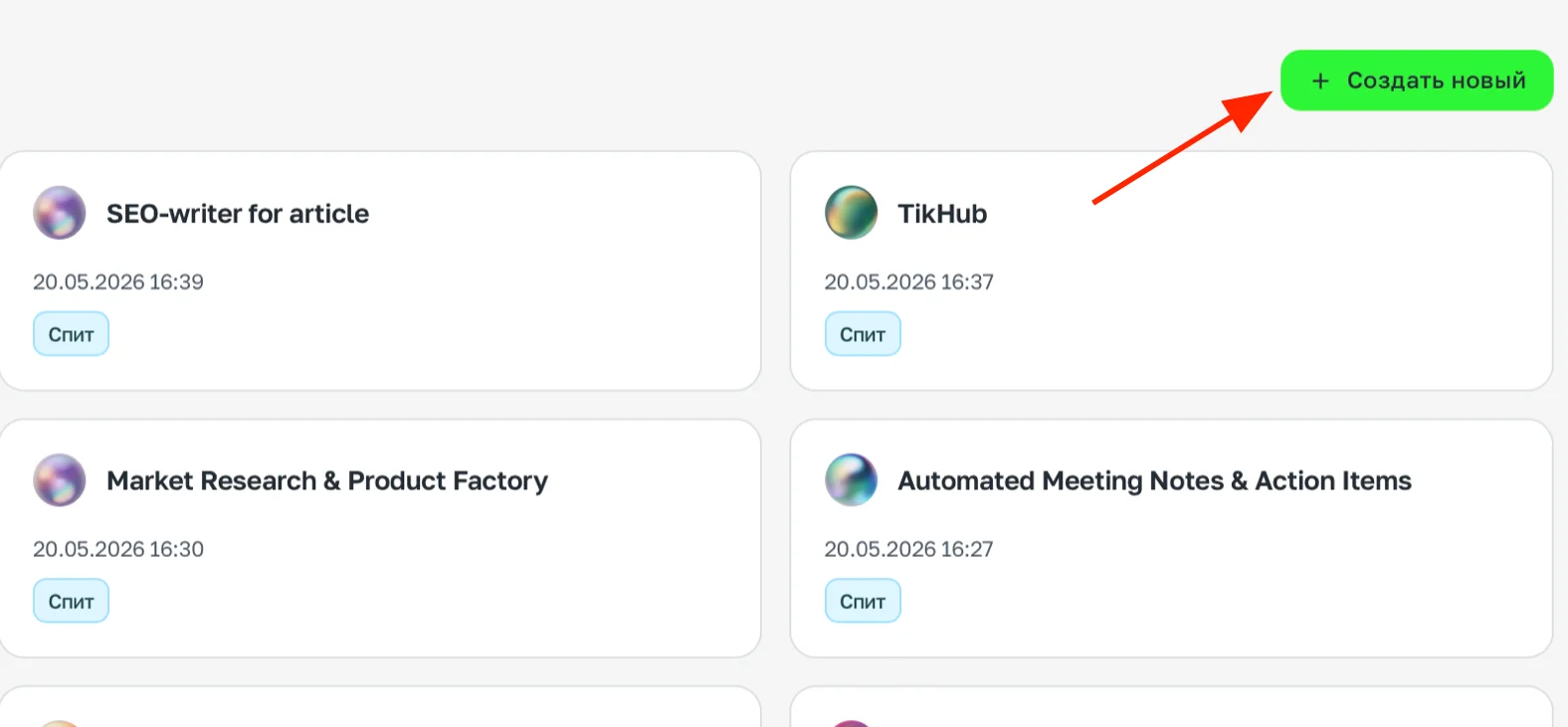
Selecting an agent from the menu and the "+ Create new" button
Step 3. Describe the task
In the chat field, write what you want the agent to do. The more specific, the better.
Examples:
Monitor deadlines in my Google Calendar. One day before a deadline,
remind me about the task and ask if I need help preparing.
Every morning at 9:00, send me a summary of unread emails in Gmail
with a brief description of each.Start with a task you already do manually on a regular basis. Delegating something familiar is the fastest way to see the agent's value.
Step 4. Connect the services you need
After your first message, the agent will suggest connecting the relevant integrations right in the chat. You can also connect them manually: Brain → Integrations → find the service you need under Apps and click + Add.
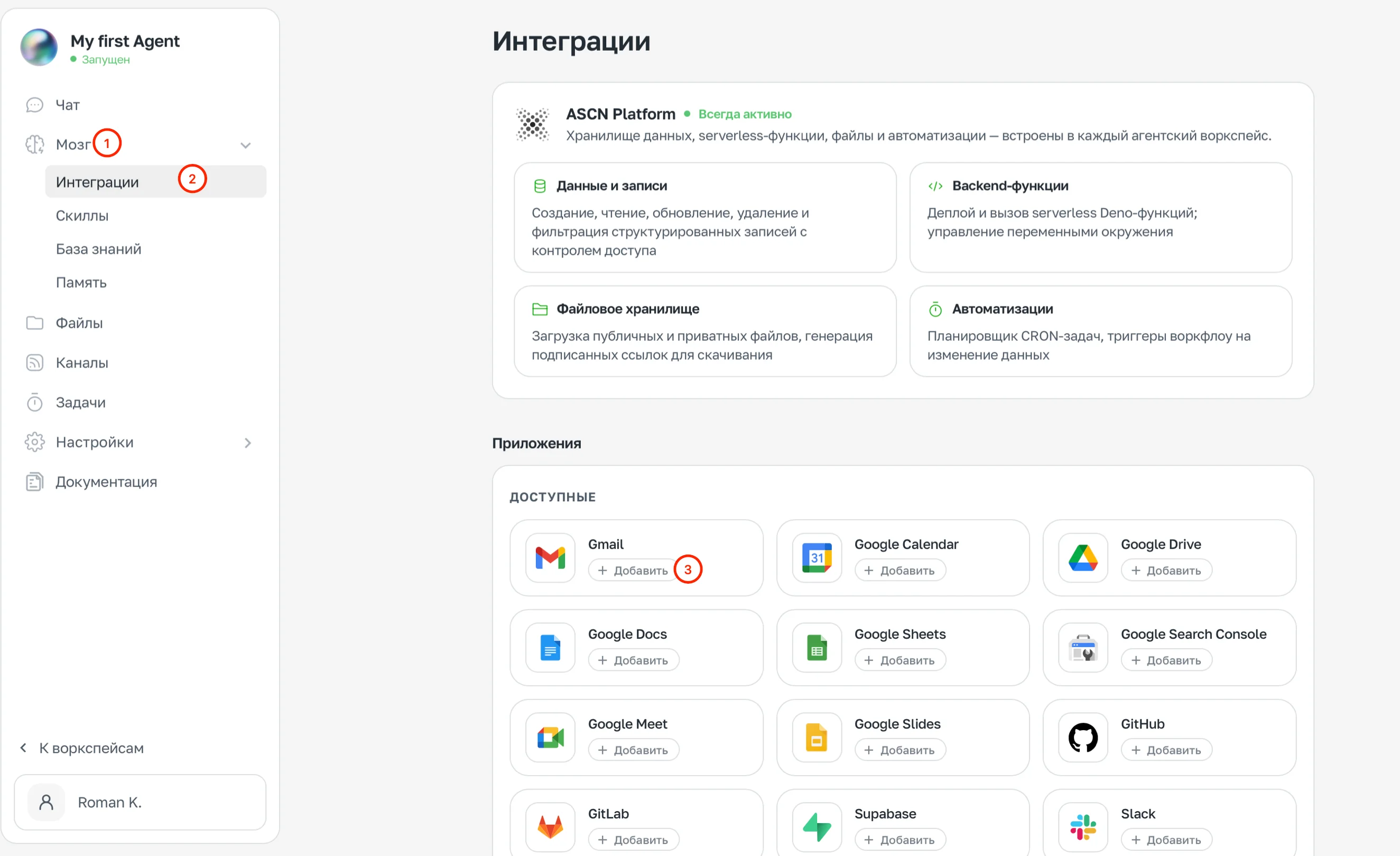
Brain → Integrations → Apps section
Step 5. Launch the agent
Once you've described the task and connected the necessary services, the agent is ready to go. Chat with it directly in ASCN or connect Telegram.
What's next:
- How an agent is structured — understand the architecture: Brain, Tasks, Channels.
- Integrations — connect Gmail, Calendar, Drive, Slack, GitHub.
- Scheduled tasks — set up automatic morning summaries and reminders.
- Example of a ready-made agent — step-by-step assembly of an email and calendar agent.
Sessions
Every conversation with the agent takes place within a session. Understanding how sessions work helps you get more accurate and faster responses — and spend fewer tokens.
What is a session
A session is the current dialogue between you and the agent. Everything written within a single session is held in the agent's memory and taken into account when responding.
Each session has a context window — the amount of information the agent can hold at once. In ASCN, this is 200,000 tokens (roughly 150,000 words, or ~300 pages of text).
What happens when the context overflows
When a conversation gets very long, the context window fills up. The agent starts to "forget" earlier parts of the dialogue — older messages get pushed out by newer ones. This leads to:
- Loss of important details from the beginning of the conversation
- Less accurate and consistent responses
- Repeated questions about things already discussed
When to start a new session
| Situation | Why |
|---|---|
| The conversation has been going on for several hours | Context accumulates and response quality degrades |
| You've switched to a different task | The old context only gets in the way |
| The agent has started getting confused or repeating itself | A sign of an overloaded context |
| You want a clean slate | No baggage from previous instructions |
If a conversation has gone past 50–70 messages — start a new session. The agent will work faster and more accurately.
How to start a new session
Click the New session button (the chat icon with a plus sign) at the top of the interface. The agent gets a clean context, but retains everything from the knowledge base and memory — no need to explain who you are and how to work with you all over again.
What is preserved between sessions
A new session is not "starting from scratch." The agent retains:
- Knowledge base — the contents of IDENTITY.md, USER.md, SOUL.md, and any uploaded files
- Memory — facts the agent has learned about you in previous sessions
- Integrations and skills — all connected services and workflows
- Tasks and triggers — continue running independently of sessions
What does not carry over: specific details from the current conversation. If you discussed something important, give a brief reminder at the start of the new session.