



Channels: Telegram, Slack, and Web Chat
Learn to connect your agent to Telegram, Slack, and web chat so you can interact with it from any device or platform, not just the browser.

Channel: Telegram
Telegram is the most convenient way to interact with your agent outside the browser — receive notifications, ask questions, and send commands directly from the messenger.
Personal chat with the bot
Step 1. Create a bot via BotFather
Open @BotFather in Telegram and create a new bot. ASCN will show you a step-by-step guide right in the interface.
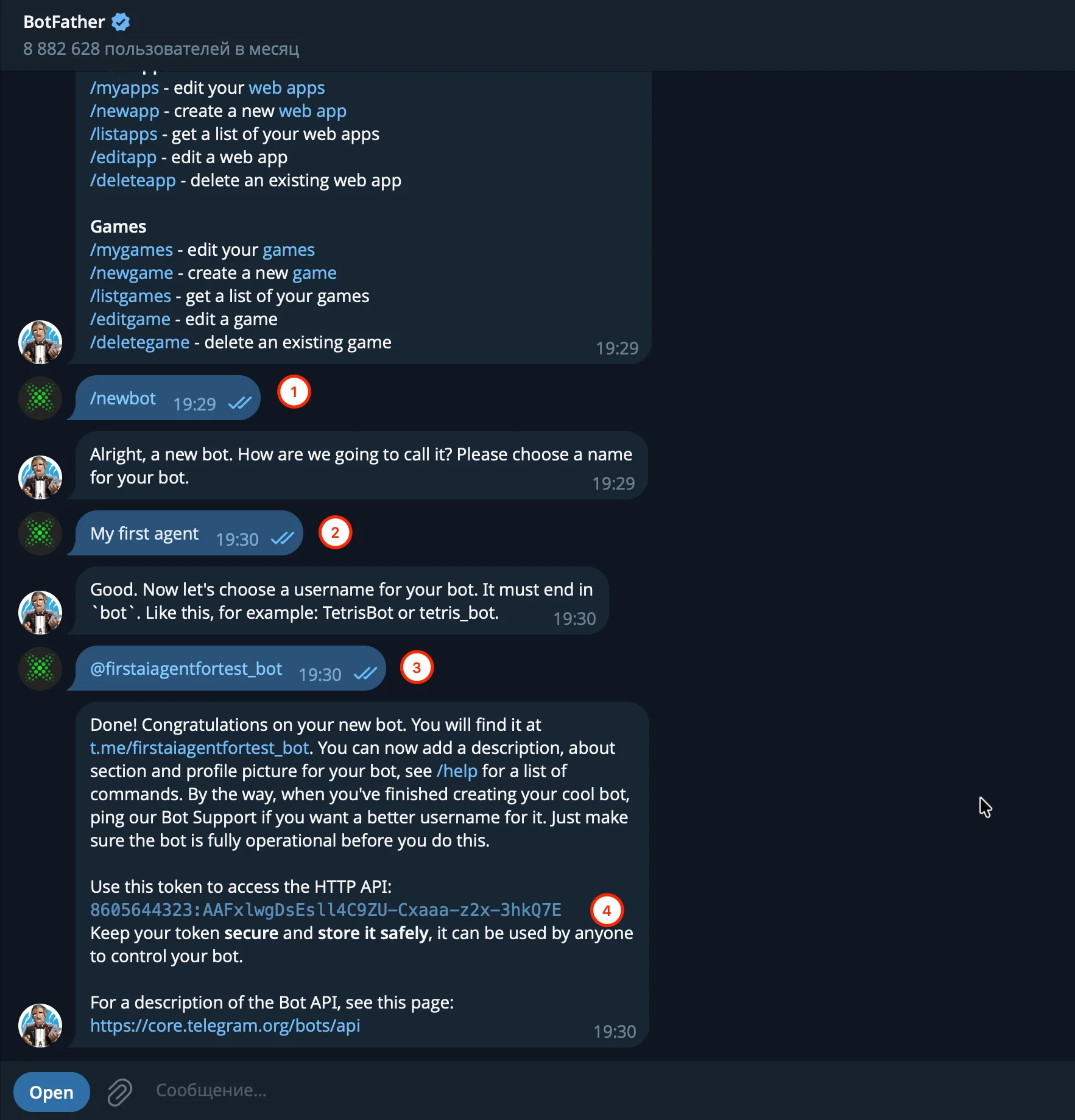
The BotFather dialog — /newbot, name, username, and receiving the token
Step 2. Follow the instructions in ASCN
Open Channels → Telegram. ASCN will launch the connection wizard:
- Open BotFather in Telegram — click the Open @BotFather button
- Send the
/newbotcommand - Choose a display name for the bot
- Choose a username (must end with
_bot) - Copy the token — BotFather will send it to the chat
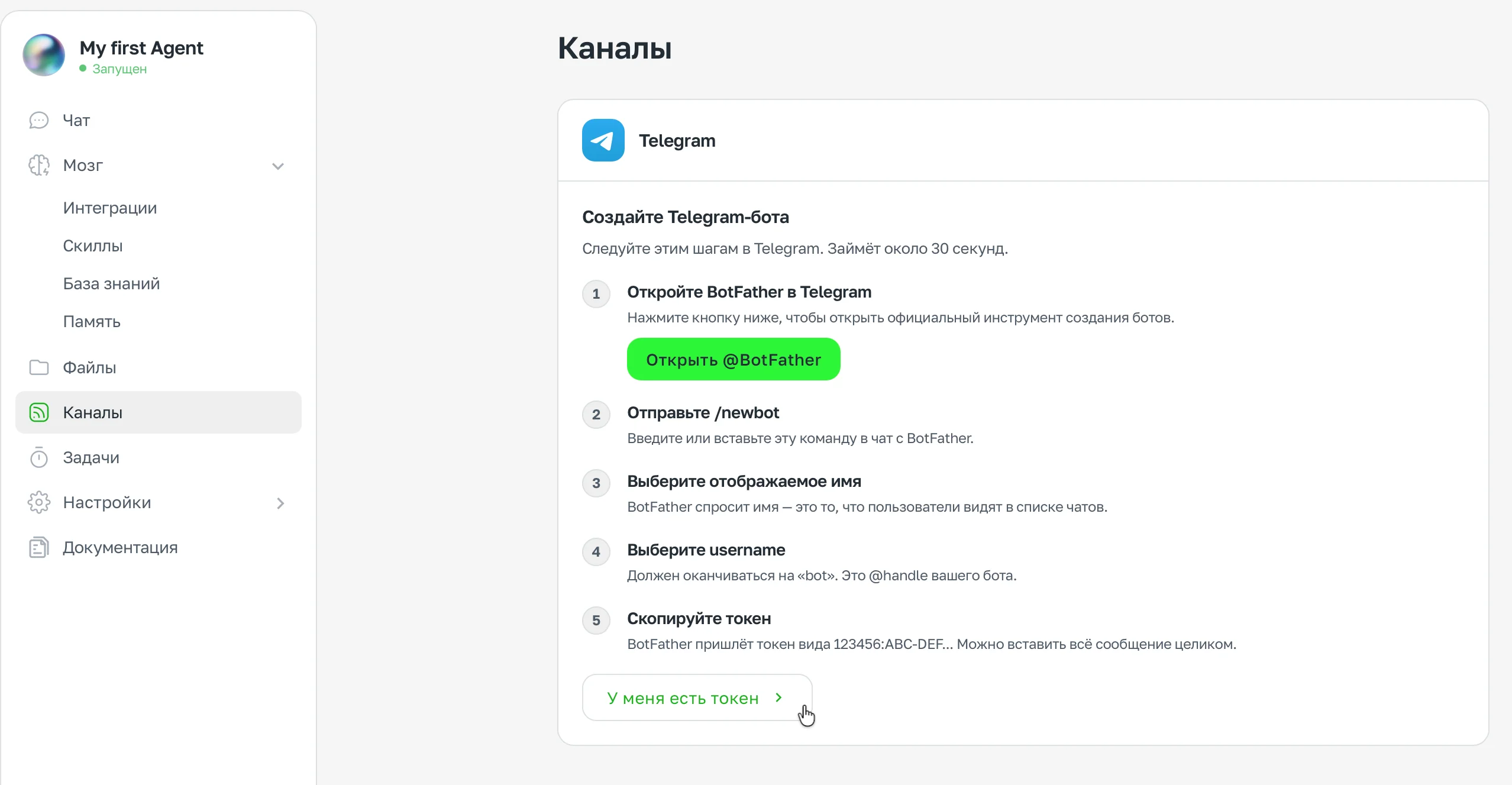
The Telegram connection wizard in ASCN — 5 steps
Step 3. Paste the token
Click I have a token →, then paste the token into the field. You can paste the entire message from BotFather — ASCN will extract the token automatically.
Click Connect bot.
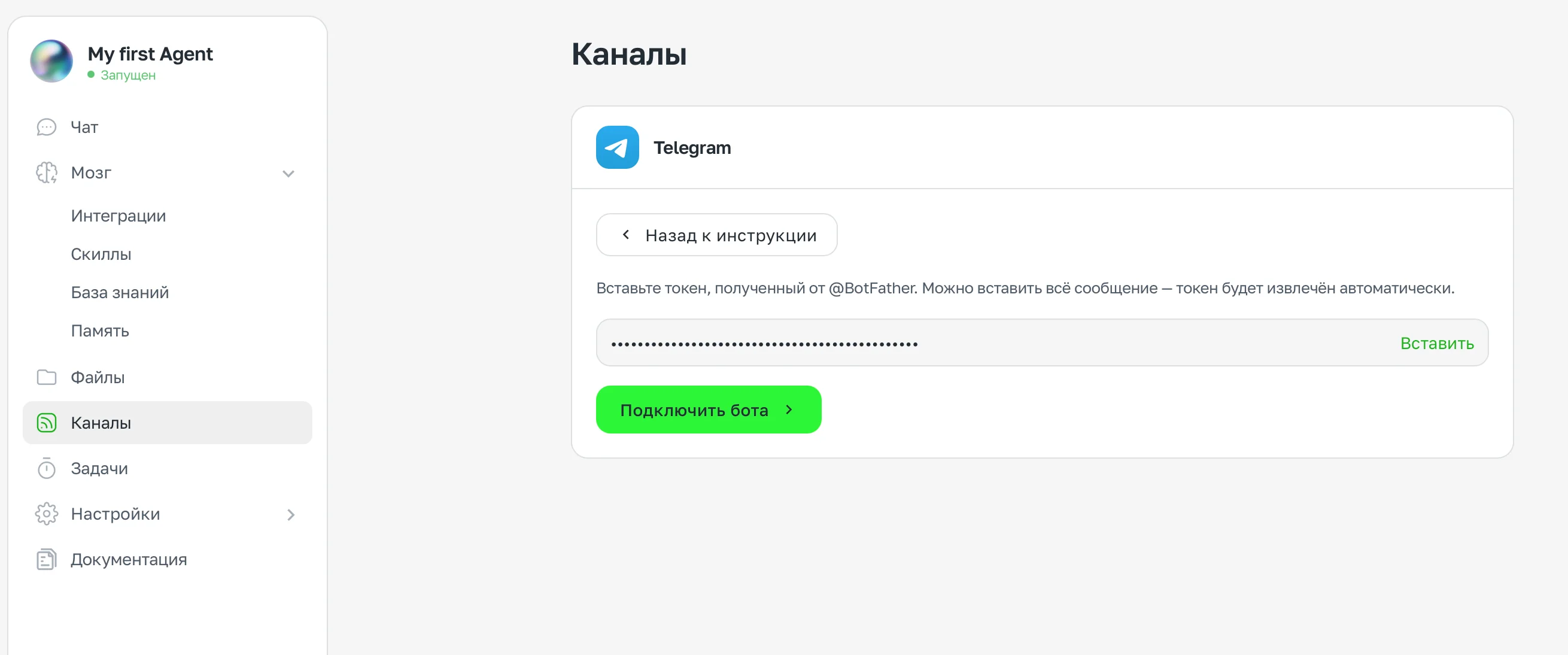
Entering the token and the "Connect bot" button
Step 4. Confirm ownership
After connecting, ASCN will ask you to verify the bot:
- Click Open bot in Telegram
- Click Start in the chat that opens — this links your account to the agent
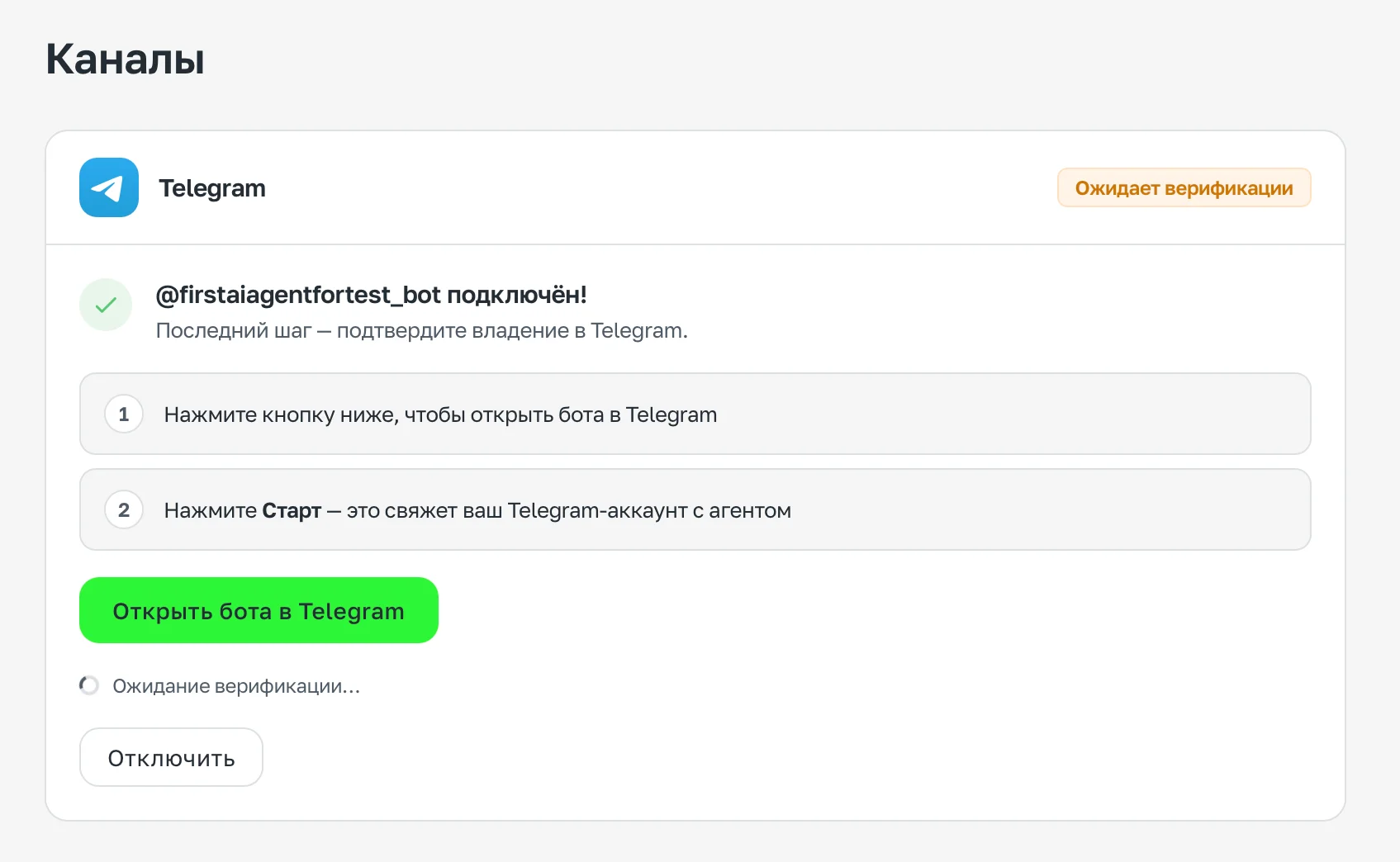
Confirmation: open the bot and click Start
Done
After clicking Start, the bot will greet you and offer to quickly connect integrations right in Telegram.
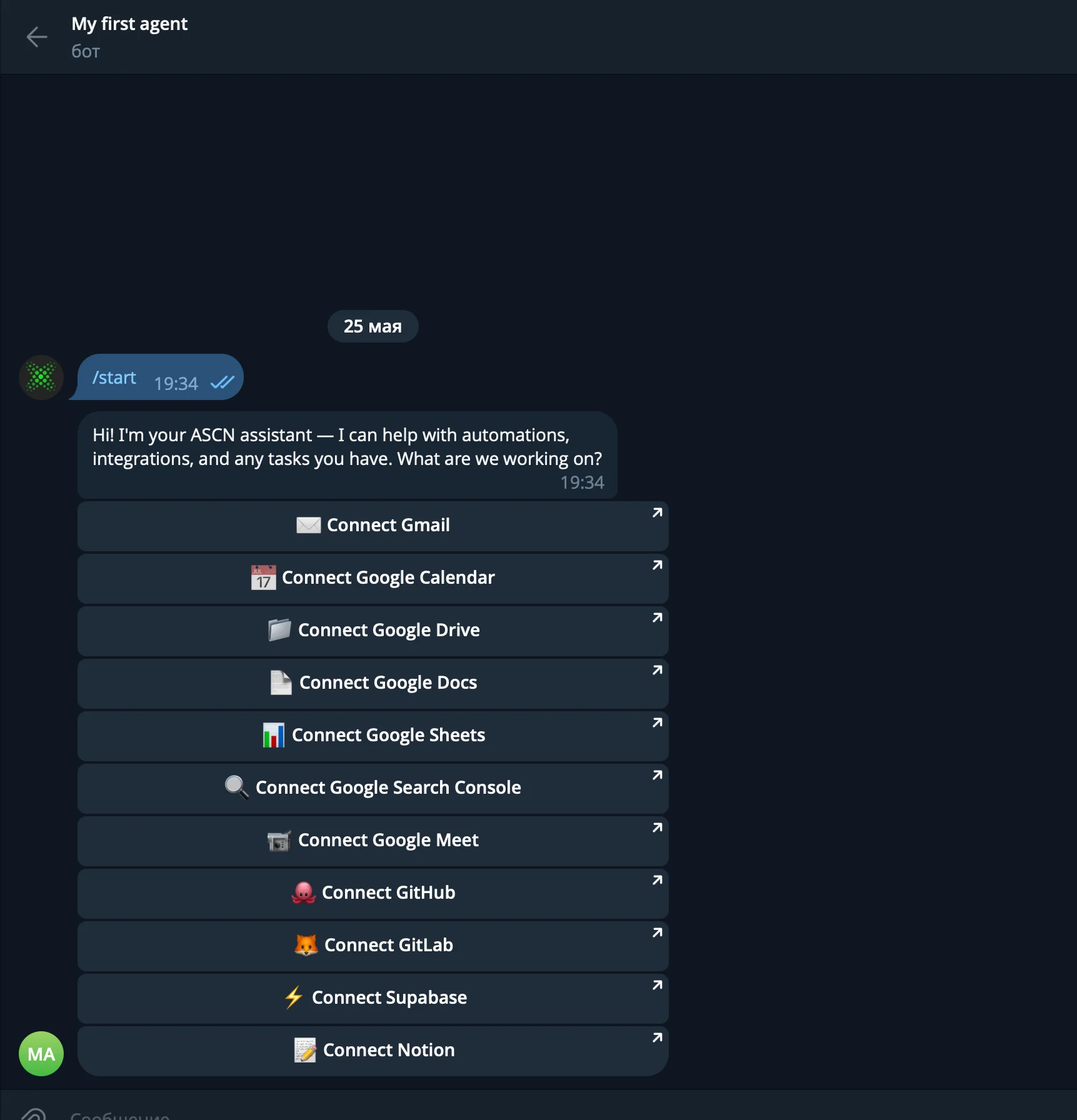
The bot in Telegram after /start — service connection buttons
Connecting to a group or channel
You can add the agent to a Telegram group or channel.
Step 1. Add the bot to a group or channel
- Open the group/channel settings → Administrators → Add Administrator
- Find your bot by username and add it
- Grant permissions: Send Messages (for a group) or Post Messages (for a channel)
Step 2. Get the chat ID
The easy way: add the @RawDataBot bot to your group or channel — it will immediately send a message with the chat.id, copy it. Once you have the ID, remove @RawDataBot from the group.
Alternative: send any message in the group/channel, then open:
https://api.telegram.org/bot<YOUR_TOKEN>/getUpdatesIn the response, find the chat.id field (for channels it starts with -100).
Step 3. Enter the ID in ASCN
In the Channels → Telegram section, enter the Chat ID and click Save.
In groups, the agent responds to messages addressed to the bot via @username, or in reply to its own messages.
Connecting a personal Telegram account
The agent can operate from your personal account, not as a bot.
When a personal account is connected, the agent gains access to your chats and messages, and can send messages on your behalf by command or trigger. The agent does NOT act automatically: it will not reply in chats without an explicit command or configured trigger. Recommendation: if you want to keep things separate — use a dedicated Telegram account specifically for the agent.
How to connect:
- Go to Channels → Telegram
- Select the Personal Account tab
- Click Connect account
- Enter your phone number and confirm the code from Telegram
What you can do via Telegram
- Ask questions and get answers
- Give commands: "send an email", "book a meeting", "what do I have today?"
- Receive notifications from triggers and scheduled tasks
- Upload files and images directly in the chat
Example commands:
What's in my inbox today?Send an email to Ivan Petrov: confirming the meeting on Friday at 3:00 PM.Schedule a meeting with the team tomorrow at 11:00 AM, title "Product Sync".Channel: Slack
Slack lets you communicate with the agent directly in your team's workspace — ask questions, receive notifications, and give commands without leaving your familiar environment.
How to connect Slack
- Open the Channels section in the agent settings
- Select Slack
- Click Connect
- Sign in to your Slack account and select a workspace
- Confirm the requested permissions
Once connected, the agent will appear in your Slack as an app.
What you can do via Slack
- Ask questions and get answers in the agent's direct message
- Give commands: "check my email", "what's on my calendar?", "send me a summary"
- Receive notifications from triggers and scheduled tasks
- Send messages to channels via the agent (if the Slack integration is connected in Brain)
Example commands:
What meetings do I have tomorrow?Post in the #general channel: "The daily sync is moved to 3:00 PM."Check my email and send me a summary of the important messages from today.To send messages to Slack channels via the agent, also connect the Slack integration in the Brain → Integrations section.
Channel: Web Chat
ASCN Chat is the platform's main interface. This is where you talk to the agent, configure its behavior, and monitor task execution — no additional apps required.
What you can do in the chat
- Ask questions and give commands to the agent
- Configure the agent — add rules, prompts, task descriptions
- Connect integrations (buttons appear right in the chat)
- Upload files for processing
- Monitor task execution in real time
New session
Every conversation takes place within a session. To start with a clean context — click + New Session at the top of the interface.
Learn more about when to create a new session in the Sessions section.
File uploads
Drag a file into the chat field or use the attachment icon. The agent will process the file within the current message: analyze it, extract data, and answer questions about its contents.
Access
The web chat is available at ascn.ai from any device and browser. No additional installation needed.
To use the agent outside the browser, connect Telegram — you'll keep full functionality, notifications, and commands right from the messenger.