



Connecting Gmail and Google Calendar
A step-by-step guide to connecting email and calendar via Google sign-in: what permissions the agent asks for, what it can see, and how to verify access.

ASCN Team
11 June 2026
The agent is created and knows its task. Now you need to give it access to data — email and calendar. Without this, it won't be able to read anything.
The connection works through standard Google Sign-In (OAuth). You simply click "Connect" and grant access — just like signing into any website with your Google account.
Connecting Gmail
- Open your agent
- Click "Brain" in the top menu
- Go to the "Integrations" section
- Find Gmail in the list
- Click "Connect"
- A Google popup will appear — select your account and click "Allow"
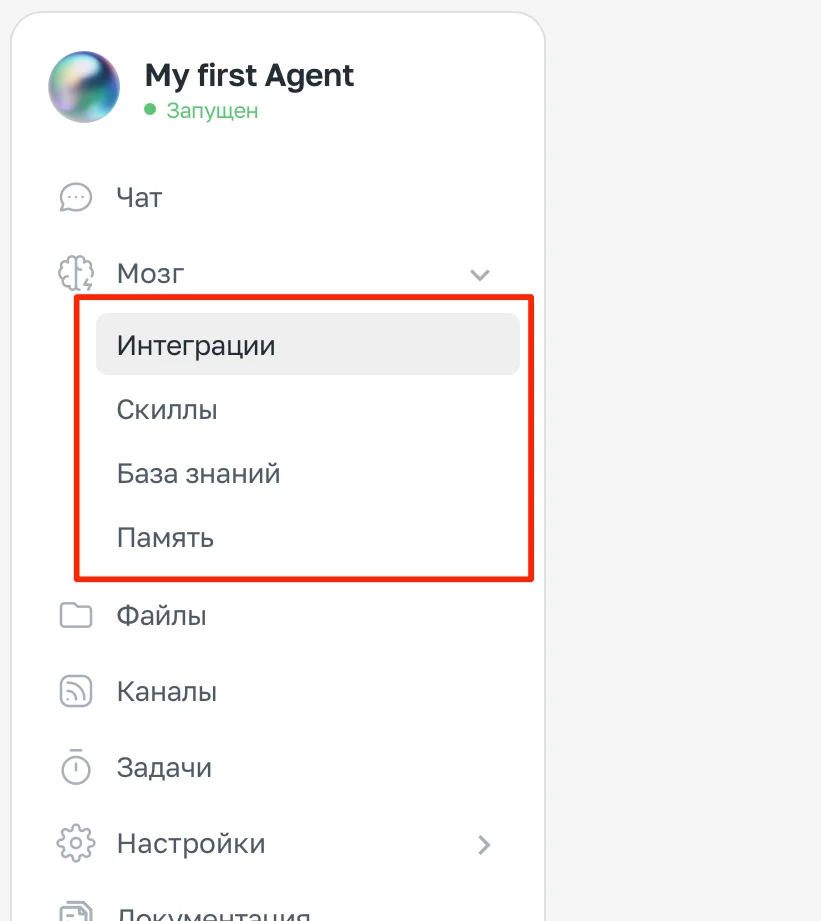
The agent's Brain
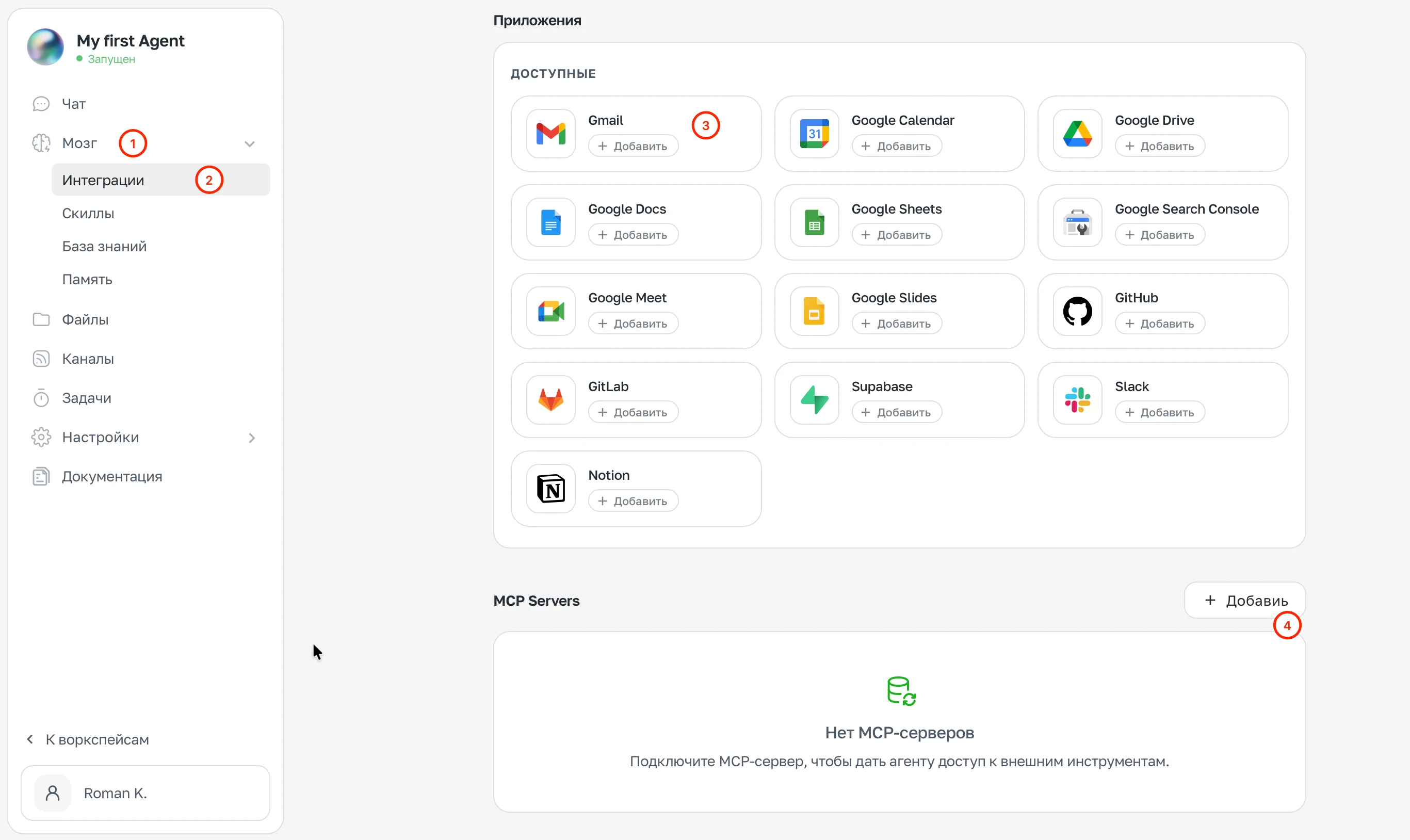
Connecting integrations
Gmail will appear in the list of connected integrations with a green checkmark.
Connecting Google Calendar
Repeat the same steps for Google Calendar:
- In the "Integrations" section, find Google Calendar
- Click "Connect"
- Grant access in the Google popup
The full version of this lesson is available only with the Personal / VIP (365 day's) / Gold (180 day's) / Start / Business plan. Click the button and subscribe to access all lessons.
Choose a plan