



- Русский
- English
- Português
Automate Email Replies in Outlook with OpenAI
Learn how to set up automated replies in Outlook using OpenAI GPT to save time and personalize emails. This article covers technical approaches using the Microsoft Graph API, Power Automate, and convenient no-code solutions. Optimize your corporate email workflow and improve customer support efficiency with AI technologies.

The daily internal email of a corporation is becoming a huge headache, with incoming messages from all directions and most of them requiring very similar replies. Sales directors, for example, are spending almost 50% of their day just sorting through large volumes of emails. The support staff also send repetitive replies using templates and recruiters are manually replying to hundreds of applicants in the old way. Sound familiar? It is tiring!
There are of course traditional tools such as Power Automate or Zapier but they use rigid templated solutions and the problem with those is they fail to really understand the content of the emails so you get automated responses that sound like they came from a robot.
By using OpenAI's GPT technology to connect with Outlook through their API, you can create a whole new type of intelligent assistant that actually understands what someone is saying, customises the response based on the sender's style and produces a personal reply draft in seconds! In this article we will go into detail about how to set up this type of system using plugins/Scripts or no-code solutions such as ASCN.AI.
Using AI and OpenAI in this way will reduce your incoming email processing time by 70-80% when you provide the GPT model with the proper context from any previous correspondence or from your CRM via a trigger.
Why would you integrate AI and OpenAI into your Outlook mailbox?
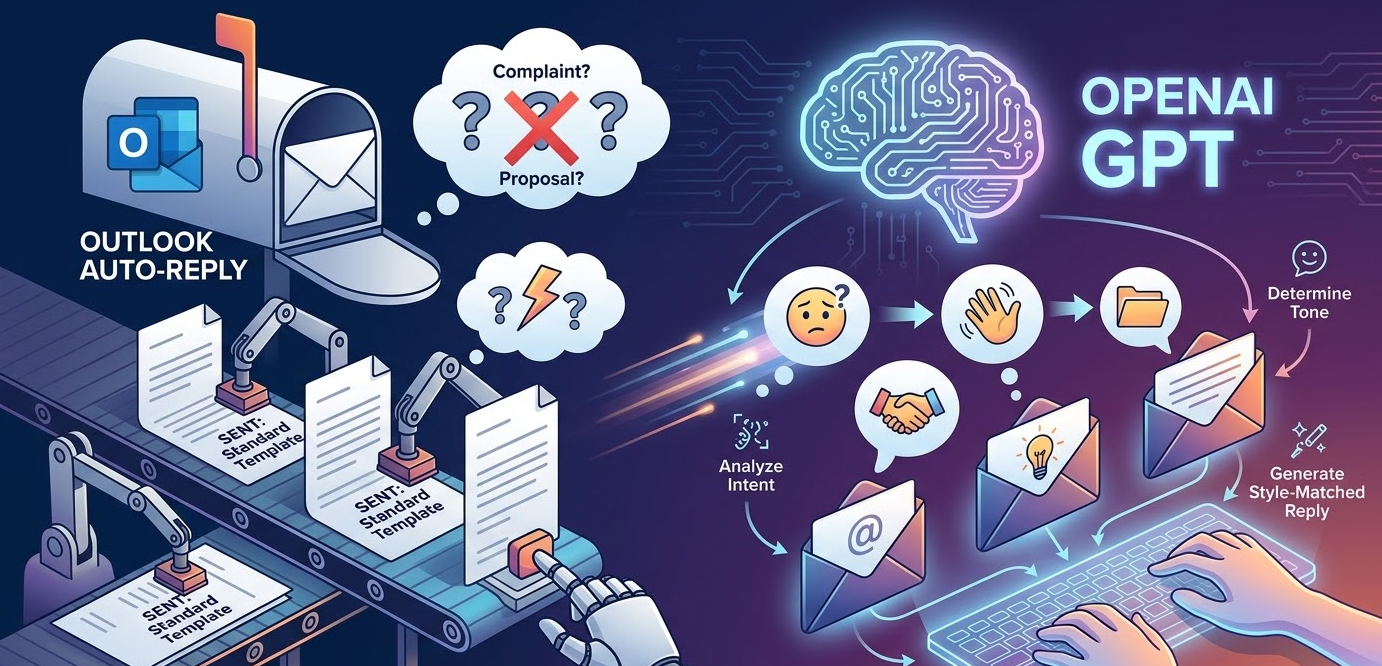
It’s simple; Outlook accounts for approximately 60% of all corporate email! Other than built-in auto responders in Outlook...The limitations of email templates provided by Microsoft's Intelligent Email Reply service will mean that response automation is limited to basic ticket responses. The system cannot intelligently determine the meaning of the email (i.e., whether it is a complaint or request, etc.).
With OpenAI GPT, this limitation is overcome because it processes the email as a single coherent thought process and interprets the intent as complaint/request/proposal. Additionally, it evaluates the sentiment of the email and produces an appropriate reply based on the manner in which the user communicated with them through the email.
Benefits of Using OpenAI GPT with Outlook:
- Depth of Context: OpenAI GPT-4 Turbo can process up to 128,000 tokens (approx. 96k words), meaning that it can take into consideration an extensive history of correspondence as well as Customer Relationship Management systems.
- Language Translation: The AI will automatically determine the language of an incoming email and continue the correspondence in that user's language while inherently maintaining the individual user's writing style.
- Interfacing with other Systems: The API will provide the capability of connecting the AI to systems such as Customer Relationship Management, knowledge bases, and inventory status, providing an extremely relevant and accurate answer to the user's email.
67% of users of GPT experienced a 40%-55% reduction in workload at the frontline support level, primarily due to AI generating drafts for a person to review prior to sending.
Who Uses Automated Email Response System?
- Small Business: An e-commerce store may receive 100 identical inquiries daily; therefore, the AI could respond to the general inquiries, saving approximately 12 hours/week on high-ranking client management and company development.
- Large Corporations: Human resources will review thousands of resumes; therefore, the AI will create personalized emails and save 40% of manual efforts and provide a much higher quality of response.
- SaaS Support Services: The AI will also provide an almost instantaneous response to the majority of service desk inquiries on SaaS products. Common FAQ's are often addressed automatically and accurately without the need for human intervention. Any other request will be routed to specialist representatives for initial diagnostics on any type of specially requested information or services.
Conversely, it is still necessary to forward any emails requesting any complex solution or service (like an everyday legal or medical consult) to a representative human being for assistance due to the fact that any other option would not create "joy." Additionally, it does not make sense to automate requests received for something occurring infrequently (e.g. under 20 times per week).
An additional case example of this would include cryptocurrency arbitrage (where basic technical queries can be addressed using AI, while more difficult queries will be forwarded automatically to tech support for immediate resolution).
Technology Overview
Technology discussed in this article relates to the two main Outlook applications used by users, Microsoft Office 365 (desktop version) and Outlook.com (web-based version). The key difference between these two applications is the underlying API that supports each application. The desktop version uses Visual Basic for Applications (VBA) programming modules and COM interfaces to interact with various aspects of the Microsoft Office Applications (such as sending and receiving email). The web version, on the other hand, interacts with the Microsoft Office Applications using the Microsoft Graph RESTful API set.
There are several features provided through the Microsoft Graph API:
- Reading and filtering of email messages
- The ability to create and send emails (or save drafts)
- Management of folders and rules for managing email messages
- Management of attachments to messages being sent/received
In addition to this functionality, the Microsoft Graph API also provides one common entry point to access the Microsoft 365 Services, i.e. SharePoint and Microsoft Teams.
Outlook add-ins, which are HTML and JavaScript-based extensions with corresponding user interfaces that rely upon the Office.js framework, facilitate sending an email directly from within Outlook to OpenAI, receiving a response, and placing the response into an existing email draft within a single window. Microsoft's Power Automate Platform has a poor UX that relies on Microsoft applications. You need a Premium subscription just to create drafts or replies from templates using OpenAI content.
No-code products like ASCN.AI allow users to create flexible workflows with HTTP integrations via OpenAI, secure secret storage, complex routing logic, and CRM & messaging integrations.
Artificial Intelligence and OpenAI GPT Models
GPT is a transformer model that can remember long contexts by processing large text data sets and is ideal for email replies. Email reply model choices include:
- GPT-4 Turbo has a 128K token context window with process times of 2-5 seconds. It costs $0.01 per 1,000 tokens for input; $0.03 for output.
- GPT-3.5 Turbo has a 16K token context, cost approx $0.0015 for input/$0.002 for output - best for use with FAQs.
- Fine-tuned models - trained on the company's data to generate improved accuracy and style from response to response.
The prompt's proper construction (essentially, being what the users are requesting) is critical for successful generation from the model. Sample prompt here:
As the technical support manager at a general merchandise online store, analyze the text of the customer's message. If it mentions delivery, provide information about timelines. If the customer expresses dissatisfaction, apologize and offer solutions. Maintain a friendly tone. The response should not exceed 100 words.AI Email Responder Principles
- Pre-Processing: The purpose of pre-processing is to leave only the core content in each email. Pre-processing will remove HTML, signatures, quoted text, or any other extraneous content from each email.
- Classification: After pre-processing each email, we can use OpenAI's GPT classification capabilities to identify the nature of the request in the email (complaint, question, invoice request).
- Response Generation: Response generation will be conducted by creating a draft response to each email based on the customer history, CRM data, and the context of the original request.
- Post-Processing: Post-processing will include validating the final response for format, content length, and for unacceptable or "forbidden" words. The final responses will then be sent out—either automatically or with human approval.
As part of the post-processing for Falcon Finance's email exchange, all requests were categorized into three different groups of requests, and then each response was generated in the appropriate format.
OpenAI and Outlook Integration Technology
Creating Automated Responses Using the OpenAI API
- To begin using the OpenAI API for automated responses, the first step is to create an account with OpenAI and register for an API key on the OpenAI platform. Once a new account is created and the API key is obtained, you must sign up for a pay-as-you-go plan with OpenAI.
- After signing up with OpenAI, select which model to use (either GPT-4 Turbo or GPT-3.5 Turbo).
- To invoke OpenAI, you will build a simple HTTP POST request to:
https://api.openai.com/v1/chat/completions - When creating your HTTP request you will have to craft the following parameters: (1) which model to use, (2) the roles of the message being sent (system and user), (3) how many tokens the response should be (maximum), and (4) how creative the response should be (temperature).
- Once the OpenAI API has responded with a JSON object, extract the response text from the returned JSON object.
You can then integrate the text returned from the OpenAI API into other scripts or no-code automation platforms to generate and deliver automated email responses.
Example Request Message to OpenAI:
{
"model": "gpt-4-turbo-preview",
"messages": [
{"role": "system", "content": "You are an email customer support assistant."},
{"role": "user", "content": "What are my options to reset my password?"}
],
"max_tokens": 150,
"temperature": 0.7
}
How to Use AI Functionality for Outlook Add-Ins
Add-ins are web applications that run inside Outlook. The add-in can use Office.js to manipulate emails and connect with the OpenAI API. The minimum requirements for using an add-in are creating an add-in manifest. The sidebar and button controls are created using XML but there's still logic that controls their functioning (retrieving the body of an email from a message, sending that body (the email) to OpenAI, and taking the returned values from OpenAI and displaying them) in your app using HTML and JS. The best method for securing your API credentials from other parties is to use a proxy to access your own API through a server.
Using Power Automate and OpenAI to Automate Tasks
- Trigger - Create an instance of "New email received in Outlook";
- Action - Extract the email body;
- Submit an HTTP Request to OpenAI with the content of the email body;
- Parse the JSON response;
- Create a draft or automatically send a reply via email.
Power Automate's primary benefit is that it is user-friendly and more easily integrates with Microsoft 365. On the downside, Power Automate has a very limited free plan with very deep dependency upon the Microsoft Platform.
Although ASCN.AI provides more sophisticated workflows with support for HTTP requests, secret storage, and multi-level routing.
Code Snippet Examples / Prototypes
A Python script could periodically run (e.g., check every five minutes via Microsoft's Graph API to filter emails using the text "return" in the subject, make requests to OpenAI, generate a draft of the response from OpenAI). Visit the "Code Sample" section of this article for some very useful code examples.
How to Build This Solution
Step 1 - Access the OpenAI API
- Register to get an API Key;
- Keep Your Key Secret (Store It Securely);
- Set Spending Limits (on your API usage) and Track Your Usage.
Step 2 - Integrate The API into Outlook
(using 3rd Party Add-ins or Custom Scripting)
- Outlook-addins for Windows;
- Power Automate;
- No-Code solutions like ASCN.AI.
Ensuring proper security levels and responsibility for message handling are essential parts of any communication strategy.
Step 3: Automation for Email Response
Create trigger rules and filters, as well as business logic for each, detailed care with context to be passed on through the ticket history, CRM data and prior interaction.
Step 4: Validating & Tuning the Algorithm in Action
- Testing scenarios manually using OpenAI Playground before deploying.
- Perform test runs save results to drafts, direct release with A/B test criteria: TTFR (Time to First Response), CSAT (Customer Satisfaction Score), reaction time, using available metrics and/or monitoring options including: Postman, ASCN.AI logs and Analyzing Your Usage (OpenAI Dashboard).
Tips on Writing Effective Prompts
- Set the Role and Constraints: Include in system prompt the identity of AI, work context, and limitations. ex; "You are an online store customer support manager, you may respond to questions related to orders and/or delivery, maximum number of words will be 100 per response."
- Provide Few-Shot Samples: Include 1 or 2 examples of the final response in your prompt. This provides the model with an example of the tone, format and text structure required to deliver a correct response. The closer to the result produced by the example, the higher the likelihood of obtaining a similar result.
- Provide context in order to personalize the response: provide customer’s name, history and past inquiries if available through CRM data source. This establishes a relationship and reduces errors.
- Regularly repeat evaluations: Collect examples of emails where the model produced an incorrect/weak response (i.e. how long was the delay to respond) and improve prompts based on this information. Continue to analyze your data.
- Conciseness: Set a maximum response length and remove introduction statements that are not needed. Customers tend to prefer short concise answers and they are less likely to make mistakes when given an answer in a quick manner.
- Temperature: Set Temperature for Business Correspondence to between 0.3 to 0.5. Lower temperatures will allow for a more predictable and professional response. For businesses, the response should contain no "creative" variations.
Protect Data Security and Confidentiality
Disclaimer: The above is a general guideline that does not replace the need to consult with a professional in the field of security.
- Keep API Keys Private - Use both Rotations & Spending Limits
- Anonymize Personally Identifiable Information (PII) prior to sending to OpenAI
- Use Azure OpenAI for Data Localization Requirements
- Follow GDPR-compliance (Notify Customers and provide opt-out)
- Protect the system from Prompt Injection (Restrict Role Changes or Filter Responses)
Avoid Typical Automated Errors
- Never set "Auto-Send" immediately—always begin by saving the response as a Draft
- Be mindful of the previous history of the Thread and Context at the time of generation
- Establish a Data Source for Testing - A large dataset of email responses should be compiled
- Establish Escalation Procedures for Complex Requests (to Live Agents)
- Monitor Performance of System & Create Status Notifications
Limitations and Potential Issues
Although GPT Models Generate High Quality Text, they cannot verify data for accuracy. The rate of Error (Hallucination) with GPT 4 will be approx. 12% but drops when using Retrieval-Augmented Generation (RAG) to an estimated rate of 3-4%.
Solutions Include:
- Using Relevant Snippets from Usable Databases (RAG)
- Call Function – Access Back to Internal Systems for Present Day (Up-to-Date) Information
- Establish Confidence Score & Escalate if the Response is Low.
Technical Constraints
- Restrictions on how many requests can be submitted to Microsoft Graph API are in effect, whereby any user will be limited to submitting either a maximum of 1000 requests in an hour or total number based upon user tier.
- The same goes for how large a body of an email can be created when using OpenAI. If there’s a reasonable limit on body size, you would remove formatting.
- Webhook subscriptions for Outlook/Microsoft 365 are short-lived and geared mainly toward corporate customers.
- Just like the OpenAI API, the APIs from Microsoft also have restrictions on the maximum numbers of requests that can be submitted within the subscription tiers.
- The overall cost would vary based on which API is selected and the number of requests below are estimates only. Accordingly, the cost for 1000 emails using GPT-3.5 Turbo starts around $0.86, and the cost of doing the same using GPT-4 Turbo would be approximately $7.90.
OpenAI API Limits & Cost
The OpenAI API has multiple pricing tiers, which means it will take some time to determine how to utilize it effectively for maximum budgetary savings. Because of this, you should have a clear business model for usage versus budget.
Frequently Asked Questions (FAQ)
Can other platforms use the same concept described above?
To an extent, yes; however, the differing capabilities of the APIs will vary between different email service providers. Outlook/Microsoft 365 has by far the most comprehensive integration with Microsoft’s Graph API, while Gmail has Assistant Tools as well as a variety of officially provided APIs to interface with their email service.
How should an organization measure the quality of output from the OpenAI API?
The first step would be to create draft copies of the automatically generated emails so that you can review their initial output. Once you are comfortable with the quality of the output, you could begin to monitor the quality of each of the outputted emails through A/B testing as well as monitoring direct feedback from users.
What limitations may limit you when using the OpenAI API?
Cost of each request, request token limits per account type, as well as volume of requests by users are a few of the limitations. There exists a potential for substandard results necessitating supplementary confirming processes.
Conclusion and Suggested Actions
Automation of responses via methodology of AI tools (GPT) appears to be increasingly accepted as a formal method of automating business processes. When the capabilities of future GPT's are further enhanced through additional integration with CRM and corporate systems and security features to allow these processes to function more efficiently and effectively than they do now.
Assessing the Performance of Automatic Response Systems
The most important metrics to consider include: (i) time from initial contact (TTFR) until the initial response is made; (ii) customer satisfaction rate (CSAT); (iii) speed of processing; and (iv) reduced workload for your staff. Adjustments made to how the automatic responses are generated (i.e., algorithms, programming, Artificial Intelligence, etc.) will have a direct effect on the success of these automatic responses.
In-Depth Comparison of Alternative Response Automation Methods
Table 1 lists the most commercially viable systems to use in automating email response generation.
| Platform | Price | Outlook Support | AI Integration | Flexibility | No-code |
|---|---|---|---|---|---|
| Power Automate | from $15/mo | Built-in | Azure OpenAI | Medium | Yes |
| Zapier | from $20/mo | IMAP/SMTP | Webhook OpenAI | Medium | Yes |
| ASCN.AI | $29+/mo | Full Graph API | Native/RAG | High | Yes |
ASCN.AI as an Advantageous Solution for Automating Email Responses
ASCN.AI is significantly easier than traditional programming options to provide you with automated integration of AI tools with your email systems. Some of the features that can be provided after you integrate ASCN.AI into your systems are:
- Pre-built workflow templates for processing and responding to email messages;
- RAG integration that provides additional validity to AI-based email responses by utilizing previously collected data to provide additional context for response creation;
- AI classifications and selectable routing of inquiries based on classification(s) of the inquiry by the AI;
- Secure hosting of API keys that are made available to you and compliant with GDPR;
- Potential savings of approximately $14,000 in the first year compared to utilizing traditional methods of email automation.
Summary
In summary, by utilizing the automated response capabilities of ASCN.AI, you can improve your email communication with your clients while reducing operational costs. Three key factors for successful deployment of automated responses in email are the science of prompt engineering; integration of RAG configuration to use internal sources of data to assist in generating accurate and timely responses for each email inquiry; and continuous assessment of the quality and security of your automated responses.
The implementation of ASCN.AI as a first step in implementing AI response automation in your business will create an abundance of new business opportunities in the new age of Artificial Intelligence.