



- Русский
- English
- Português
How to Send Emails via Gmail from Obsidian: Integration and Automation
Learn how to set up Obsidian's Gmail integration to automatically send emails and reports directly from your notes. This article covers API setup methods, OAuth, and popular no-code platforms for effective workflow automation.

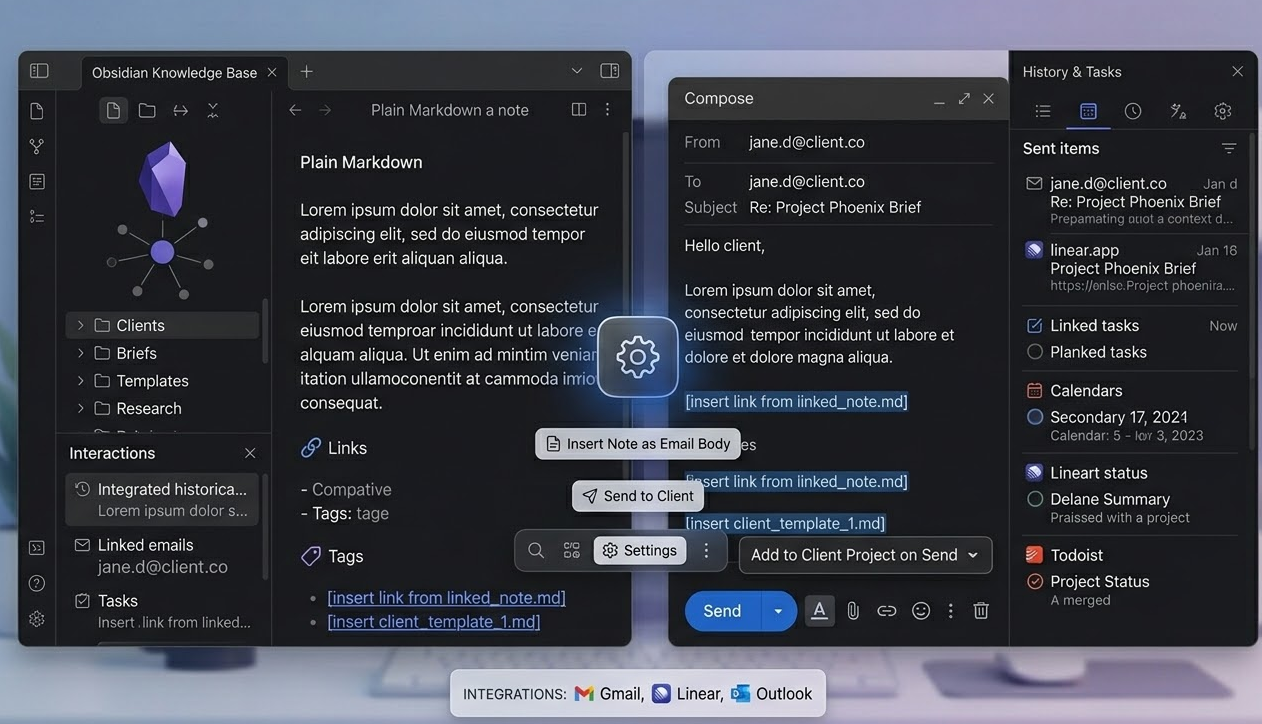
With the help of one integration between Obsidian and Gmail, many of these frustrating steps and wasted time are solved. Email from Obsidian takes the hassle out of sending email. Everything you need to send email already exists in one place, including previous emails, history, links, and metadata — meaning you will also have the proper context for sending the email.
No more copying and pasting. No more formatting. Just one command and you're done. You can set Obsidian up to automatically send email whenever you add a tag — such as #client-brief, for example — saving 2–3 hours each week in newsletter and status updates for small business owners and freelancers; as well as automating weekly report generation for teams working from Obsidian dashboards.
When amending your connector via the Gmail API, you will need to highlight the text and, either call a plugin command or a webhook, and, in return, an email will automatically be sent to the recipient defined in the metadata of the note you hold. This completes one action rather than six in approximately ten seconds.
The Benefits of Sending Emails from Notes
Additional benefits include:
- Versioning: All outgoing emails are linked to the version of the note so that you always know what was sent previously.
- Templating: You can create templates that contain variables (e.g. name, date, or amount etc.) which fill in automatically before being sent.
- Analytics: The system creates and maintains a separate note containing a log of all items sent for statistical analysis on your frequency of communicating with particular people.
Ways to Integrate Gmail with Obsidian
To date, March 2026, there is no official Obsidian plugin available that directly integrates with the Gmail API for sending emails. There are, however, several alternatives:
- Email This Note: This is a plugin that interacts with your default email client to populate both the subject and body of the message you wish to send. It does not, however, integrate with Gmail directly, therefore it doesn’t allow for any automation.
- Templater + custom scripts: This method allows you to write JavaScript in Obsidian and invoke an external API using the
fetch()function. This requires programming skills and regular manual updating of the OAuth token. - Obsidian URI & Webhooks: Use a cloud automation platform, such as Zapier, Make or n8n to run a webhook that connect to the Obsidian URI and then invoke the Gmail API. While this option does work, it also increases the complexity of the integration, as well as requiring a subscription cost in most cases.
You understand that paying for a subscription and/or coding is less than optimal, as there currently are no-code solutions for generating emails with AI agents among the existing official plugins.
Using the Official Google APIs
The Gmail API is Google's RESTful interface that allows you to programmatically send, read and manage emails. Key methods include:
users.messages.send- send emailusers.messages.list- retrieve a list of emails for logging and other purposesusers.drafts.create- create drafts of any email
Advantages to using the Gmail API over classic SMTP are:
- Authorization via OAuth 2.0 vs. use of app passwords;
- Access to drafts, labels and message history;
- A 500-email daily limit (sufficient for most users)
OAuth Setup and Security Requirements
Although it can be complicated to set up OAuth, it offers a much greater level of security by providing a temporary access token rather than a password. The process is as follows:
- Create a project in the Google Cloud Developer Console and enable the Gmail API.
- Configure a name for your app, your contact email, and define the permissions for your app (for example -
https://www.googleapis.com/auth/gmail.send) in your consent screen. - Create an OAuth Client ID (Either "Web Application" or "Desktop Application") and obtain the
client_idandclient_secret. - The user authenticates, grants you access to their information, and receives an
authorization_code, which can be exchanged for anaccess_tokenandrefresh_token.
Store tokens securely - either in a no-code platform's secret key feature or in an encrypted file.
Important security recommendations:
- Do not publish
client_secretin a public space. - Always use HTTPS for all requests.
- Ask only for the minimum permissions required to send an email (
gmail.sendpermission requires access to the sender's whole account). - Always keep track of the list of applications that you have authorized access to your Google Account.
- If possible, use the no-code platform (ASCN.AI, n8n, etc.) to configure your OAuth since it provides out-of-the-box integration.
Guide to Setting Up Email Automation from Obsidian
Setting up email automation from Obsidian will be demonstrated using the ASCN.AI platform as a no-code solution.
Step 1. Create your setup within Obsidian.
- Install the Templater plugin - Community Plugins → Browse → Templater → Install → Enable.
- Create a note template called
email-template.mdwith the following--- recipient: {{recipient_email}} subject: {{email_subject}} --- {{email_body}} - Add a Templater custom command to trigger the webhook (code example below).
Step 2. Create your workflow within ASCN.AI
- Create an account on ascn.ai, and go to Workflows then select Create New Workflow.
- Add a Webhook trigger and copy the link in the following format
https://api.ascn.ai/webhook/abc123. - Add an HTTP Request node with a POST method to the Gmail API and set up the node by adding the following
URL: https://gmail.googleapis.com/gmail/v1/users/me/messages/send
Headers: Authorization: Bearer {{$secrets.gmail_access_token}}
Body (JSON):
{
"raw": "{{base64_encoded_email}}"
}
Optionally, you can add an AI-Agent node to build the email texts from the user language. Save and activate your workflow.
Step 3. Email Message and How to Send it with the Gmail API Using Obsidian
<%*
const recipient = tp.frontmatter.recipient;
const subject = tp.frontmatter.subject;
const body = tp.file.content;
const webhookUrl = 'https://api.ascn.ai/webhook/abc123';
const payload = {
to: recipient,
subject: subject,
body: body
};


fetch(webhookUrl, {
method: 'POST',
headers: { 'Content-Type': 'application/json' },
body: JSON.stringify(payload)
});

new Notice('Email sent!');
%>
The code above takes advantage of the Gmail API to send an email from a note in Obsidian that contains the recipient, subject, and body in the front matter of the note.
Email Template Examples
Template 1 - Weekly Report
---
recipient: ivan.petrov@example.com
subject: Project X Report — week {{date:YYYY-[W]WW}}
---


Hi Ivan! Achievements for the past week:

Completed development of the authorization module;

Conducted 3 scheduled team meetings;

Next sprint: payment system integration.

Questions for discussion:

Is a demo required by the 15th?

Clarify requirements for the admin panel design.

Looking forward to your feedback.
The email will be sent automatically upon saving the note - that’s simple!
Template 2 - Auto Send on Status Change
Add a File Watcher trigger to the workflow using either the local agent or the Obsidian Sync API. Whenever a change is made to a note that has the #status-update tag, the notify field from the front matter will be used to send an email notification to users. This will save both the sender and recipient the time involved with manually sending these notifications.
Common Problems and Their Solutions
| Situation | What you will see | How to fix this issue |
|---|---|---|
| OAuth expired token | 401 Unauthorized error from API. |
Verify the access_token TTL, and if it’s expired, use refresh_token to get a new access_token. ASCN.AI will handle giving you an updated access_token. If the refresh_token is invalidated, repeat authorization. |
| Email encoding error | Invalid base64 string error in Gmail API |
The email needs to follow the format standards of RFC 2822 and be base64 encoded using standard libraries such as: btoa() in JavaScript or base64.b64encode in Python. |
| Obsidian does not detect change | File watcher trigger does not run | Obsidian Sync has a delay of approximately 30 seconds. You can trigger the webhook manually using Templater. |
Automate Email Sending from Obsidian via Gmail
Zapier:
- Create the Zap using the Webhook Trigger (Catch Hook).
- Insert your Link to Your Webhook within Obsidian Templater.
- Set the Action to Gmail → Send Email.
- Map the To, Subject & Body fields to the same values within the JSON payload.
Pros: Fast and Easy to Use. Cons: Free Plan is limited to 100 actions per month, paid plans start at $19.99/month. This Zap does not provide any built-in AI assistants.
IFTTT:
- Create IFTTT Applet using Webhook to Gmail.
- The IFTTT web interface is generally simpler to understand than Zapier, but also has many limitations with JSON processing and customization.
Email Automation Scenarios
- Automatically forward when creating a new record in Obsidian with the
#send-emailtag. Workflow reads the tag, extracts the fields and automatically sends an email based on the information from those fields. - When the Project Status changes to complete, the Manager receives a notification.
- Daily team tasks will be automatically prepared each day at 9:00 a.m. (computer time) via a cron job to email each team member with a list of assigned tasks in grouped order.
Obsidian has grown beyond a simple information repository into a powerful platform for team collaboration and communication.
Security and Privacy in Gmail and Obsidian Integration
- Enable two-factor authentication (2FA).
- Use a different Google account for automation purposes (not associated with a personal Gmail account).
- Limit access scopes to the necessary minimums; and for example only give access to
gmail.send. - Periodically examine the myaccount.google.com/permissions page for authorized applications you don’t use anymore and delete them.
Utilizing 2FA makes you a lot less vulnerable if a breach happens.
Authorization and Access Control
- Store tokens using your no-code platform’s secret keys.
- Access_token and
refresh_tokenshould be automatically updated. - Keep a log of all emails sent so you can monitor activity and track down anything suspicious.
Best Practices
- Never use public webhooks to send sensitive information; you’re sending it through a third-party service without control over where it’s being sent.
- Sending using HTTPS is very important.
- Always test when using an alias on your testing mails (i.e.
your.nick+test@gmail.com). - You also need to stay below the hourly limit established for sending emails or risk getting banned (rate-limited).
FAQ — Frequently Asked Questions on Obsidian and Gmail Integration
Can I send emails from within Obsidian without installing plugins?
This can be accomplished by calling an external webhook via Markdown, but it will use a specific URI obsidian://open?vault=... or something similar to your own URI handler. This is a little more inconvenient than having a plugin.
Does the API Work with Regular Gmail or Only Gmail Workspace?
You can use the Gmail API with a free Gmail account (limited to 500 emails sent daily) as long as you do not require exception (higher than normal) limits in conjunction with Gmail Workspace.
How to Attach Files in Emails with the Gmail API
The Gmail API uses MIME multipart to send attachments. To include an attachment within an email, the application will base64 encode the file and create the MIME message and then send the message/attachment to the original email. The actual encoding will require expertise.
Can I Create Notes in Obsidian from Emails Using the Gmail API?
Yes, you can periodically use the users.messages.list method to pull the subject and body of emails and create notes from them.
What Should I Do if My Gmail Account Is Blocked?
Google may block your account for any suspicious activity; therefore, you should always have an active verified phone number, have a recovery email address on file, and never send more than 100 emails in a 60 minute period.
Why is ASCN.AI Better than n8n or Make?
ASCN.AI has its own unique, ready-made agents that can be used to personalize emails by generating AIs that will create text or analyze information for you. On the other hand, n8n and Make both require further configuration to set up the AI solutions via API.
Conclusion
Integrating Obsidian and Gmail is a quick and easy way to convert your database of knowledge into an operational library of knowledge in email. Through the automation of routine work processes, you will now be able to accomplish your work more efficiently and effectively.
- When you are selecting your tools, keep in mind that plugins are a great option for one-time email use; however, for systems, you should use a no-code development platform (such as n8n, ASCN.AI, or Make).
- You will need to securely store your access tokens by using Secret Keys, using 2FA, and having restrictive access tokens.
- Before you start sending emails to your active email addresses, verify the use of your email templates by sending a test email from your TEST email accounts.
- It is a good idea to document your entire email project to allow you an easy way to maintain and improve upon the project moving forward.
- Use AI agents to personalize and increase the scalability of your communications.
Checklist to Implement:
- Determine the various kinds of emails you will send – notification, request, report, etc.
- Create templates for your emails (which will have a populated recipient, subject, and body).
- Register with a no-code platform (n8n, ASCN.AI, or Make).
- Complete your OAuth registration and store your access tokens in Secret Keys.
- Develop a fully functioning workflow made of Webhook → Email via Gmail.
- Send an email to yourself using one of your email templates from one of your notes in Obsidian.
- Create automated triggers based on notes that you assign tags or on a defined schedule.
- Create an automated process for monitoring and failure notifications.
- Track how much time you have saved and how much more productive you have become.