



- Русский
- English
- Português
GTM Agent with Gmail and Campaign Tracking
Use a GTM agent to automatically handle your cold email campaigns and improve your marketing outcomes. This tool simplifies client outreach by integrating with Gmail and automating personalized communication to increase overall efficiency.

Use a GTM agent to automatically handle all your cold email campaigns. The agent makes it easy for you to reach out to clients and improve the outcomes of your marketing efforts.
Brief Overview
GTM agent performs the automation of personalized cold email campaigns and makes it easy for you to reach out to customers. It integrates with Gmail and sends emails straight through the API as there’s no need to enter any details manually. This solution works best for founders and marketers who want to increase the efficiency of their marketing campaigns.
Thanks to using the agent, you can reduce the time spent on preparing emails and increase the total number of emails sent. With the help of automation, you can get rid of routine activities and focus on more important things in business. You can analyze campaigns and track campaigns easily as well.
The GTM agent allows sending emails and begins tracking their performance immediately which is important for successful cold outreach. Its integration with various services makes it a flexible tool for business growth.
Mechanism of Automation
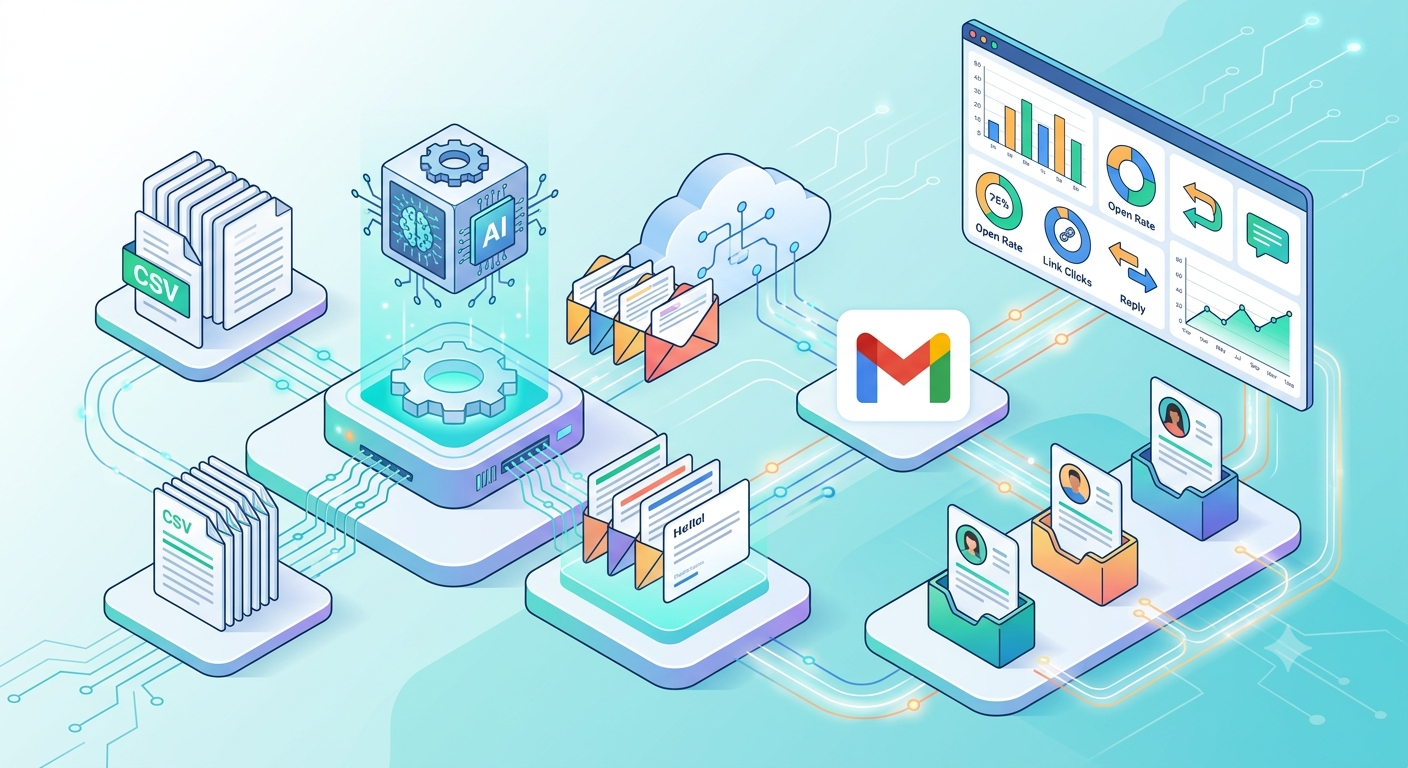
The process of automating cold email campaigns with the help of the agent is simple and effective. Import a list of prospects in the CSV format. This allows for fast uploading of data which makes things much easier and reduces the possibility of making mistakes. Using this approach, the agent is capable of preparing emails based on the information collected from the customers through the LLM, therefore increasing the chances of getting an answer.
After preparing the needed emails, they are sent out using the Gmail API providing fast and reliable delivery of an email. What is crucial here is that the system tracks the follow-up emails sent, including those opened and replied to, thus giving an opportunity to measure effectiveness of the campaign overall. What is even more important you can set up a system of sequenced emails effectively crafting them into a single campaign.
Why It is Better Than Doing It Manually
Automating the cold emailing process through the agent can bring about significantly more effectiveness in carrying out such tasks in comparison with a manual approach. The first thing is the saving of time spent on the emails composing and sending thus allowing focusing on more important matters. The point is that the system does all the things automatically saving you plenty of time.
Additionally, using such automation means that the number of emails sent is considerably higher in comparison with manual work, which is very important for companies willing to reach a large audience. The system can process lots of contacts at the same time, which is impossible with manual labor. Automation enhances the effectiveness of communication with clients as well as saves time.
The Results that Customers Receive
According to GTM agent users, the implementation of automated and personalized email marketing drives increased response rates. Because of the agent, marketers cut the time for preparing and sending campaigns. Furthermore, automation helps eliminate tedious tasks allowing them to concentrate on strategic thinking and ideas generation. Using analyzing and monitoring tools allows for quick reactions to dynamic changes in the industry.
How It Works
According to the testimonials of GTM agent users, it truly enhances the results of cold emailing. This is due to the automated process of handling contacts and sending emails. For example, founders of SaaS companies claim that thanks to the automated system, they saw a 30% increase in response rates.
Moreover, due to Gmail integration and email tracking, GTM users are able to get the data that helps achieve their goals faster. For instance, operations managers receive clients' replies, enabling instant follow-ups and thus increasing the chances for closing the deal.
What You Can Expect
Automating your cold outreach with a GTM agent has many advantages that greatly simplify the process of reaching out to potential customers. Firstly, an automated outreach process means that there’s no manual work and the risk of errors is lowered. Hence, you will be able to pay more attention to important aspects such as strategy development and results analysis.
Secondly, the system offers analysis and monitoring tools. You will receive data on sent emails, opened mails, and replies to your letters. This information will enable you to change methods and increase the efficiency of your communication with clients.
Lastly, a GTM agent offers customized email templates for different groups of customers. As a result, companies will have better chances of creating different, more catchy messages aimed at getting responses. Consequently, you get both automation of processes and an opportunity to learn more about your target audience and its preferences.
Setup Steps
To operate GTM agent effectively, you should follow a brief guide to set up everything without any problems. The first step is to get a Gmail API key via Google Cloud Console. Having Google credentials is vital for the integration with Gmail and sending emails with the help of API.
Secondly, you need to create a .env file and add your Google API key to it so that the system can access it and send emails on your behalf. The next step involves creating a CSV file with your prospects’ contact information. Make sure that there are all essential fields like name, email, and company so that everything will work smoothly.
Once you have all the information, you can start the campaign by executing a terminal command. Thus, the agent will be activated, and it will be able to process all contact information and send customized emails.