



- Русский
- English
- Português
The Best AI for Excel: Top Tools of 2026


“AI in Excel is not a replacement for an analyst, but rather their exoskeleton. The main mistake is expecting business intuition from a neural network. AI takes over the routine; the human handles the logic.”
Microsoft Office Excel does not come with artificial intelligence (AI) inherent to it. However, if you're looking to use AI with Microsoft Office Excel, you'll want to learn how to use one of the following five business process tools:
- Microsoft 365 Copilot
- ChatGPT with a new advanced data analysis capability
- Formula Bot
- Julius AI
- SheetAI
Each of these five major players provides a way to address certain types of pain points in Microsoft Office Excel, such as creating/simplifying complex and messy formulas, through to providing massive data mining projects. To sum up: Microsoft 365 Copilot will be your choice for deepest integration with Excel, while ChatGPT is well suited for simple "one shot" projects; and, finally, if you're trying to do some specialized types of mathematical calculations, then Formula Bot is a great choice.
Now let's focus on each of these products:
Which AI Works Best with Excel: Market Leaders
Microsoft 365 Copilot is the leader when it comes to providing an AI component to ensure the native workflow remains intact (meaning you can see how and when files were worked with in Microsoft Office) and has a more robust understanding of how information works (it actually recognizes the structure of the file) than the other four options combined, and doesn't require your document to be uploaded to a 3rd-party service.
The 2nd place tool is ChatGPT with the code interpretation function (although it still has many excellent features), but it does require you to have exported any document you wish to work with from your Microsoft Office product.
Finally, 3rd place would be Julius AI which is an option that should only be considered when you're working with extremely large data sets.
With this specific scenario in mind, you may want to take a closer look at each of these tools and how they integrate with Microsoft Office. You can also expect to see a continuing difference in the user experience provided by these tools (Copilot provides the highest level of integration of any Microsoft Office product) as time goes by. For example, if you're using ChatGPT you would most likely want to use the paid version of the program, which can process files of up to 512 MB in size (this should cover about 95% (maybe 90%) of all the types of business tasks). Julius is made for analyzing statistics; it finds anomalies in statistics that the human eye would possibly overlook because of eyestrain.
“Microsoft 365 Copilot has 92% accuracy with formatting preserved when processing Excel files, more than any external solution too.”
If you're looking for free alternatives (because who doesn't like free), Sber's DeepSeek-R1 and GigaChat are worth checking out. They can also work with tabular data, but integration is not as deep as some others; however, they are good enough for simple tasks.
In one of our projects with a fintech startup, we implemented Copilot for their monthly reporting process. It was a typical scenario: there were around 12 sheets with 40+ formulas each and manual validation took about 6 hours. As an action, we created prompt templates for standard calculations, reducing processing time to 45 minutes and also decreased occurrences of errors by approximately 3x. It was magical.
Which AI Works Better with Tables: Comparison of Tools
The following is a current comparison chart containing real-world examples of each type of paid and free product.
| Name | Integration Type | Price | Best Functionality | Speed of Response |
|---|---|---|---|---|
| Microsoft 365 Copilot | Native (Inside Excel) | $30/month | Formulas, analysis, dashboards | Immediate |
| ChatGPT Plus | Web plus upload of file | $20/month | Code, formulas, visualizations | 5 to 15 seconds |
| Formula Bot | Web plus plug-in | $19/month | Formula generation | 2 to 5 seconds |
| Julius AI | Web | $49/month | Statistical analysis, insights | 10 to 30 seconds |
| DeepSeek/GigaChat | Web (free) | Free | Basic statistical analysis, text | 5 to 20 seconds |
The best AI tools for working with tables all depend on the task you need to do. Choose Formula Bot if you prioritize simple solutions; choose Julius for advanced data analysis or to generate unique insights through intelligent search. The best option to work daily in Excel without needing to switch between windows is through Copilot.
“Formula Bot achieved 94.3% accuracy on complex formula generation-related tests when compared to Copilot (the winner for contextual understanding) while Formula Bot was faster than Copilot on overall performance metrics.”
The Top AI Options for Excel: Features and Functions
AI generates formula commands from text phrases and identifies logical errors in your formulas. For example, if you asked AI to "generate a new formula to calculate total sales by region for quarter 3," it would know to use the SUMIFS function and pick out the row/column for the data automatically — and save you the headache of having to do this yourself!
What AI is the best fit for Excel in this regard? Formula Bot with a target accuracy of 94% of its formulas matches perfectly to tasks that involve formula calculations. Although Copilot does a good job of understanding the context of existing rows and columns in the workbook, it doesn’t give any suggestions that wouldn’t be intelligent based on your data.
For Client Data Analysis With Large Files
With approximately 10,000 lines of data in a single file, to compare historical data/trends, to evaluate relationships (correlations) and anomalies in the data, Julius is the perfect solution. This includes building models of statistical relationships (regression) and identifying outliers that common Excel functions won’t identify. Therefore, Julius is often considered to be a key intelligence (AI) tool in the world of cryptocurrency analysis/trading.
“Julius is three times faster than historical manual methods to identify statistical outliers.”
An example of this is several online stores generating 50,000 orders monthly will receive an update from an online retailer with 100% or more transactions returned when asked to generate a report to identify anomalies. All data. We measured three regions with false records. As a result, we saved 2,300,000 RUB a quarter. The numbers speak for themselves.
Cleaning and Structuring “Dirty” Data
Standardizing the format of your text; breaking the text into different columns; removing duplicates. Using the AI technology of ChatGPT, it has the ability to consider all the text as context instead of just a pattern to follow and therefore can be told to “make it look pretty” with very little instruction on how to do so.
“ChatGPT processes unstructured text of 11 different types with 89% accuracy 37% beyond template-based tools.”
An example is: take a customer database that has 8 different phone number formats and receive the prompt of “Convert all phone numbers into the format of +7 (XXX) XXX-XX-XX.” This would typically take 3 hours of manual labour to format the database correctly versus ChatGPT completing it in 30 seconds and therefore is one of the most consistent requests obtained from clients.
Writing VBA Macros
Creating advanced functions through coding. When you describe what you want to achieve, you will receive a completed macro. You build an application through the use of a VBA Editor with Copilot and will receive the same with a description of what was done by ChatGPT. There is a small hitch.
“Using AI that is based on GPT-4 reduces the time to create VBA Scripts by 60%.”
Be sure to use testing data to validate the accuracy of the code created by AI before using it in production due to the possibility of finding the edge cases in the program.
Common Mistakes and Pitfalls (Checklist)
In order to prevent bugs from entering production, verify the following when reviewing your AI for the following errors. Although these lists are basic, many developers overlook these things:
- Wrong References: There may be a reference added to the sheet that does not actually exist.
- Ignoring Nulls: Your formulas will become broken when there is a null in a position where there was an expected number.
- Infinite Loops: Errors found in the logic within a macro can create hang-ups in Excel.
AI and Excel Table Integration: Understanding Workflows
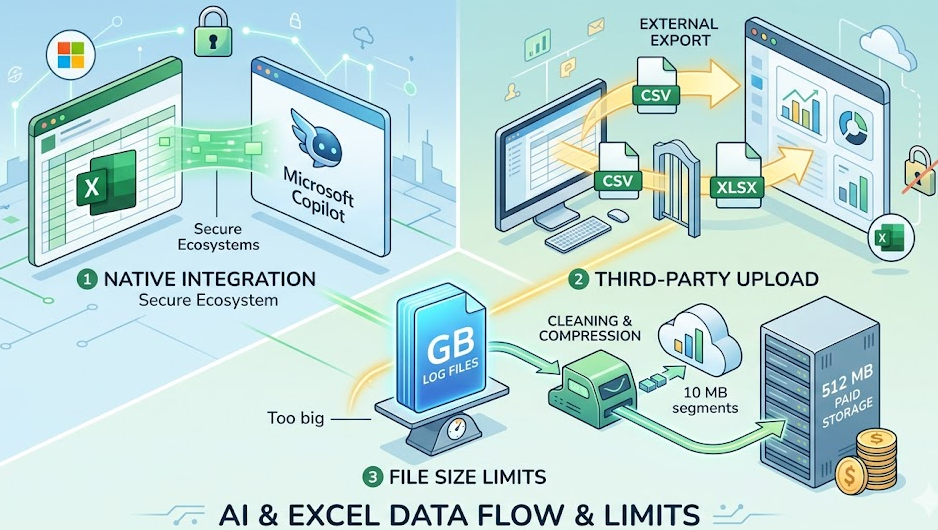
There are several ways to integrate AI with Excel tables; you might use API's (Application Programming Interface), plugins, or even upload files directly. The Microsoft Copilot product is native so your data never leaves the Microsoft ecosystem while the use of other services will require that you export the data to CSV or XLSX format before uploading and this is a key area of concern for security purposes.
When uploading files, your formats will always be either XLSX, CSV, or Google Sheets. However, the only limitation that exists is file size. The free versions limit you to 10 MB segments while paid versions can go up to 512 MB. Therefore, in order to utilize the entirety of your gigabytes of log files you will need to clean the files, or pay for the additional storage.
Is it safe for me to upload my financial data to an AI source via Excel?
If you have confidential data... the only AI source that is recommended is Microsoft 365 Copilot. Your data will remain within the Microsoft ecosystem and it will also be encrypted. The use of cloud services such as ChatGPT or Julius will allow you to upload public statistical or marketing data to these services. Always confirm that you read the service's data processing policy. Having an extremely high level of paranoia regarding your data is a perfectly reasonable expectation.
“The end-to-end encryption model (Copilot) and storage of information within the customers regional area prohibits third-party access to any data.”
ASCN.AI suggests storing your confidential data locally when using Copilot. You may use cloud service for uploading marketing statistics and public statistics. You should never upload the two types to the same service.
What are the best AI tools to create tables from scratch?
Generative tools utilize your provided text to develop table structures. The use of text to spreadsheet is a relatively new entry into the generative AI world but there are several great AI programs available to produce table structures quickly and save you hours of manual construction. These programs are great for the quick creation of prototype structure.
Examples of queries that could be entered into SheetAI or Copilot would include: "create a content plan table for 1 month with 4 columns (Date, Topic, Status and Deadline)." Thus, you instantly receive a completed table structure with formatting applied. Pretty nice!
Steps for Creating Structures Using Copilot
- Cash Model: A 12-month overview of cash flow that shows how much money comes in each month and how much money goes out along with the balance after each transaction. The table has four columns: month (1 to 12), income, expense, and balance, and the last column shows a category of the transaction.
- Content: A three-month plan that has information about what is going into each channel of your business. The spreadsheet contains six columns; channel, date (starting date), subject, format (type of media), status (completed, scheduled, etc.), and metric for measuring the content's success.
- Project Plan: A roadmap for a project with the project's stage, person who is responsible for that stage, date to start each stage, date to end each stage, risks associated with each stage, and the cost of each stage of the project.
Situation: You are launching a new product, and you need five tables from five different departments. Action: Using a Copilot to create the five tables in 15 minutes. Result: You have saved four hours of an analyst's time, and now all five tables are in the same style. This may seem like a small thing but is a nice feeling.
Free vs. Paid Solutions: Which Should Businesses Select
Free solutions for ChatGPT (GPT-4o mini) to use have the following restrictions: File size is limited to 10 MB, and only 40 messages per three-hour period. The Free version of Formula Bot allows users to create 10 formulas in a 24-hour period. This is only enough for short-term projects. Free solutions will not work for a business with daily use of the AI. When finding free alternatives, two of the better-known solutions are DeepSeek and GigaChat, both of these allow uploading a file for analysis, but both have export or memory limitations. In general, they are both worth a try.
Benefits of Paid Subscriptions to Excel
The reasons to purchase a monthly subscription are: Data privacy, faster priority response, and the ability to analyse complex data without limits. If you spend ten or more hours a week using tables, then Copilot ($30 per month) pays for itself. If you need advanced level statistical analysis, then you should purchase Julius ($49 per month). All of this is based on how much money you value your time.
Which AI Serves Best as an Excel Supplement for Business? The volume of work done. You can chat for free using ChatGPT and the Formula Bot for up to five hours per week. After that, you will be required to use a support agent called Copilot for five through twenty hours, and if your analysis gets complicated, use both Copilot and a new service called Julius if you are to use more than twenty hours per week.
ASCN.AI Experience: Real Automation Cases
We have tested fifteen different applications and services in real-world projects over three months with ASCN.AI to see how they perform under the following criteria: accuracy of calculations, speed, security, and total cost of ownership. We have provided case studies of these tests as they relate to cryptocurrency and trading markets.
- ASCN.AI's case on the Falcon Financial (FF) crash shows how we generated a $1,000 profit in the first two prompts by analyzing market data through prompts. You can read more about this case study.
- ASCN.AI's next case study involves our investment and profits due to flash crashes, as we analyze overnight data and then respond automatically to any market anomalies that arise. This case covers events from the night of October 11.
Frequently Asked Questions about Using AI in Excel
Is it safe to upload sensitive data to AI for use with Excel?
Your confidential data will stay in Microsoft 365 Copilot because everything is maintained within the Microsoft environment and encrypted. You should only upload your statistics or marketing data to the cloud-based services (ChatGPT, and Julius) as they report only publically available statistics or marketing metrics. You should always read their data processing policies.
Can a neural network completely replace an Excel analyst?
No, a machine learning application or neural network will perform 70-80% faster on routine tasks and not take the place of the skill of the analyst. While a machine learning application can generate reports, the human analyst will still interpret results, set-up tasks, and validate logic. ASCN.AI uses both the machine learning application for routine tasks and the analyst for validation and decision-making. Analysts and machines work together to improve efficiency and value of reporting while reducing errors and improving decision making.
Which AI application(s) support smarter formulas for Russian users?
Both Copilot and ChatGPT (GPT-4) show all supported Russian-formatted formulas for both versions when they are used in Excel 2010. The Formula Bot supports Russian-formatted formulas but is limited to only the English version of the formula when using the Formula Bot. Therefore, if you want fewer errors while using a Prompt to create a formula in Russian, or an English formula, you should type in Russian for the Prompt and type in English for the actual formula — SUMIFS versus СУММЕСЛИМН.
Do these tools work with the mobile version of Excel?
Microsoft Copilot is available in the iOS and Android mobile apps, but they are not supported as fully functional versions of the Excel desktop app. ChatGPT and other web-based applications/services can operate through your mobile phone's browser, but because of the inconvenience of using a mobile device to manage large tables, you will get more effective use of these applications on a desktop computer.